Starting
Windows setup installer (basic way)
- Run Logitech Gaming Software (it allows accessing LCD)
- Start DCSpy from Start Menu.
- Click
Start - LCD should update with dcspy basic info, waiting to connect to DCS
- Run DCS and start any mission.
via uv (advanced way)
- Run Logitech Gaming Software (it allows accessing LCD)
- You can check with
uvinstall tool inside user directory likeC:\Users\<username>\AppData\Local\uv\tools\dcspy\Scripts - You can drag and drop
dcspy.exeordcspy_cli.exeto desktop and make shortcut (with custom icon, you can find icon in installation directory i.e.C:\Users\mplic\AppData\Local\uv\tools\dcspy\Lib\site-packages\dcspy\img). dcspy.exe- with open directly GUI windowdcspy_cli.exe- additionally start a console window (with logs)- Double-click on dcspy icon or type
dcspy.exe\dcspy_cli.exefrom Command Prompt - Click
Start - LCD should update with dcspy basic info, waiting to connect to DCS
- Run DCS and start any mission.
Note: DCS can already running, before starting LGS and or DCSpy.
Note: If you upgrade DCSpy before version 1.7.0 dcspy.ico and config.yaml were in data directory like c:\python313\dcspy_data\ but location is deprecated in Python if you still have it, you can safely delete it
Mono vs. Color
DCSpy do not use full potential of G19, which support full RGBA, 8-lines LCD. In contrast to mono devices (like G13, G15 and G510), which support mono, 4-lines LCD.
LCD buttons
G19 has 7 buttons. In contrast to mono devices (like G13, G15 and G510) has only 4 buttons. Way in which actions assign to button for G13 (four buttons form left to right) are mapped to G19 looks: * G13 1st button -> G19 left button * G13 2nd button -> G19 right button * G13 3rd button -> G19 down button * G13 4th button -> G19 up button
Right now LCD buttons are hardcoded in DCSpy and its function depends on currently loaded aircraft. This will change in the future.
G13, G15, G510 - Mono
mono, 4-lines LCD with only four buttons
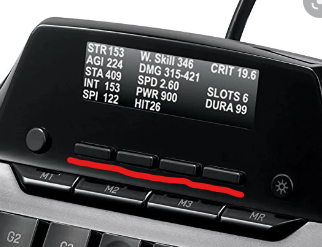
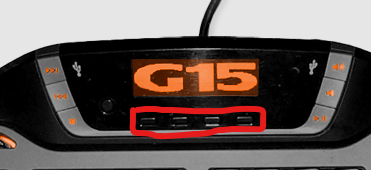
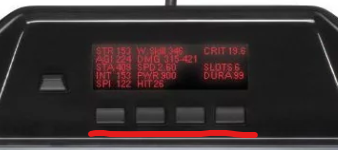
G19 - Color
full RGBA, 8-lines LCD with seven buttons
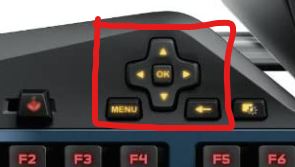
G-keys
From DCSpy 3.0 it is possible to use all keyboard's G-Keys: * G19 - 12 keys * G510 - 18 keys * G15 v1 - 18 keys * G15 v2 - 6 keys * G13 - 29 keys
You can assign almost any input controller from a cockpit for aircraft supported by DCS-BIOS. Note: DCS-BIOS has to provide input protocol.
How-to setup:
- Install Git: https://git-scm.com/download/win (any 64-Bit, default options should be fine)
- Set DCS-BIOS folder ie. (D:/Users/wags/Saved Games/DCS.openbeta/Scripts/DCS-BIOS)
- Set checked Use live DCS-BIOS version (can take 20+ sec)
- Click Start and then Stop (in rare cases is needed)
- Open LGS, new profile should be added (current dcspy file name: i.e., dcspy_cli_3.0.0)
- Set this profile default and optionally persistent. Close LGS.
- Go to G-Keys tab, additionally turn on View / Show G-Keys extra dialog
- Select plane from combo box in upright corner
- assign any controllers to G-Key/Modes
- Use save icon to save plane configuration
Configuration
All settings can be configured directly via GUI. However, more advanced users can change configuration file config.yaml file. It is located in user's AppData directory (e.g. C:\Users\<user_name>\AppData\Local\dcspy\config.yaml).
This is a simple file, most users do not need to touch it at all. Configuring DCSpy enable some powerful features of DCSpy.
Keyboards
- keyboard - default Logitech keyboard value, last used value is saved automatically
possible values:
G19,G510,G15 v1,G15 v2,G13 - Select correct keyboard since all of then support different combination of: LCD, LCD buttons and G-Keys
Settings
DCSpy
- autostart - when set to
trueDCSpy start automatically. possible values:trueorfalse - show_gui - it allows showing or hiding GUI during the start of DCSpy. When set to
falseDCSpy start automatically. possible values:trueorfalse - check_ver - check for new version during start of DCSpy.
possible values:
trueorfalse - dcs - installation directory of DCS. By default it is set to
C:\Program Files\Eagle Dynamics\DCS World OpenBeta
DCS-BIOS
- check_bios - check for a new version of DCS-BIOS during the start of DCSpy.
possible values:
trueorfalse - git_bios - If set to
TrueGit/Live version of DCS-BIOS with be used possible values:trueorfalse - git_bios_ref - Git valid reference i.e. branch name, tag, SHA of commit etc. possible values: any Git valid reference
- dcsbios - location of DCS-BIOS folder inside user's
Saved Games\DCS.openbeta. Set this parameter to correct value allows user check and update DCS-BIOS to the latest release. example value:D:\Users\wags\Saved Games\DCS.openbeta\Scripts\DCS-BIOS
Fonts
- font_mono_xs - size of extreme small font for mono devices
- font_mono_s - size of small font for mono devices
- font_mono_l - size of large font for mono devices
- font_color_xs - size of extreme small font for color devices
- font_color_s - size of small font for color devices
- font_color_l - size of large font for color devices
- font_name - file name with TrueType font use in all devices
- f16_ded_font - Special font for F-16's DED (G19 Color LCD only)
Debug
- save_lcd - take every change of LCD as screenshot (for debugging)
possible values:
trueorfalse - verbose - Show more debug logs, be more verbose (for debugging)
possible values:
trueorfalse